
Accurate EXIF Reading
DPI is read directly from the image EXIF metadata (XResolution/YResolution) when available, the same method used by professional design software.
Find out if your image is print-ready. Upload your image and instantly see its DPI, pixel dimensions, file size, and a print readiness rating, all analyzed in seconds.
Drag and drop or click to select — JPG, PNG, WebP, GIF, BMP, TIFF supported
Image is used only for DPI analysis and immediately discarded.
Analysing image…
Drag and drop or choose any image from your device.
See the DPI value, dimensions, and physical print size in inches.
Read the print quality rating: web, draft, standard, or professional.
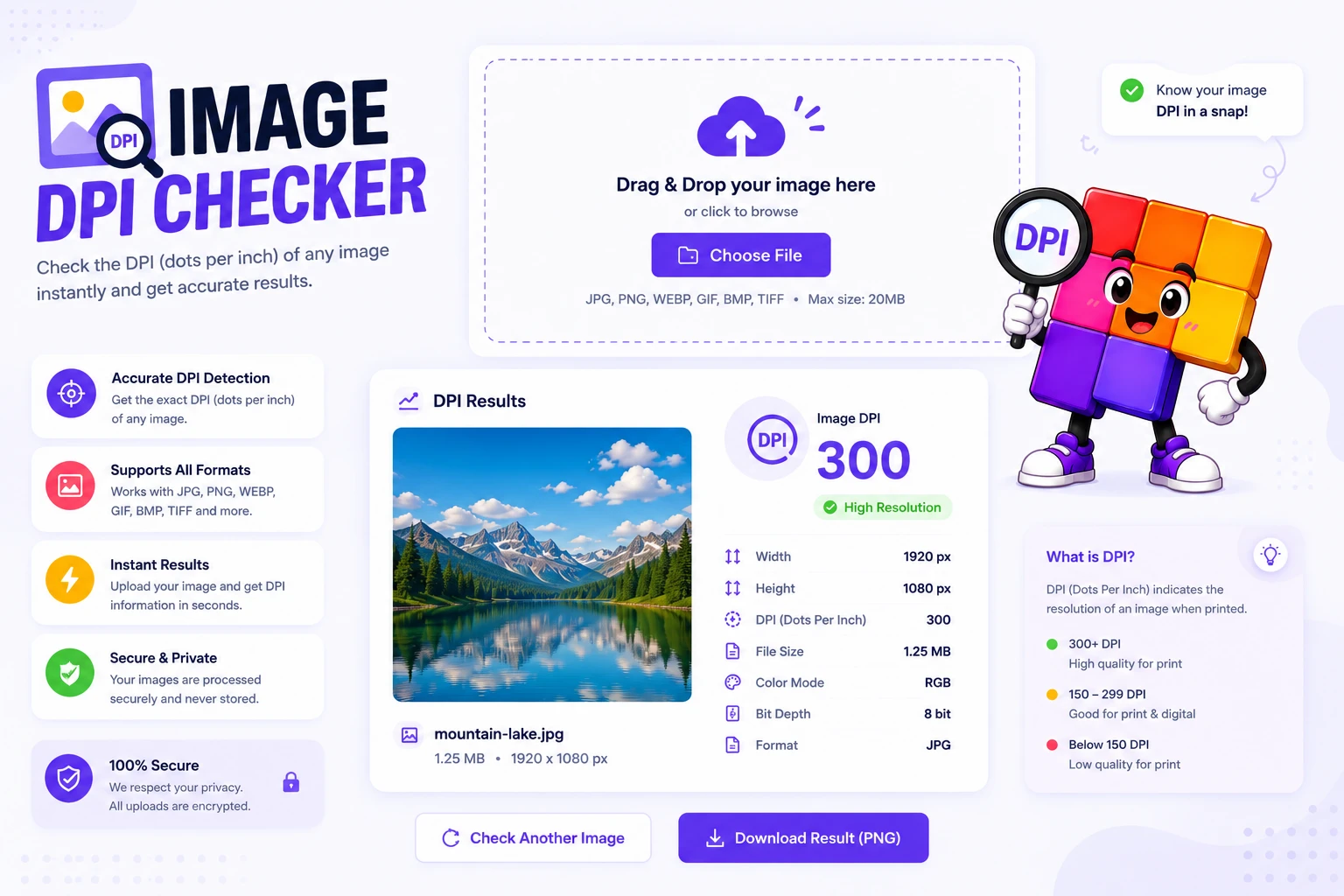
Print one wedding invite at 72 DPI and the result is a blurry mess. The DPI checker reads any image instantly and tells you the exact resolution plus the maximum print size that will look sharp.
Use it before sending files to a print shop, ordering canvas wraps, or designing anything that has to look crisp at hand-held distance.
DPI is read directly from the image EXIF metadata (XResolution/YResolution) when available, the same method used by professional design software.
Get an instant rating, Print Ready (≥300 DPI), Good, Screen Only, or Very Low, so you know at a glance whether your image is suitable for printing.
See DPI, pixel width and height, file size, and file format all in one clear results panel alongside a live image preview.
Analysis happens server-side in milliseconds. The image is discarded immediately after reading its metadata, nothing is stored or shared.
More Image tools you might find useful.
Common questions about checking image DPI.