
Delete Pages From PDF
Remove unwanted pages from your PDF document in seconds. Simply upload your file, select the pages
you want to delete, and download your cleaned-up PDF — no sign-up needed.
Delete PDF Pages
Select pages to remove from your document.
How to Delete Pages From a PDF
Remove PDF pages in just three simple steps.
Upload Your PDF
Choose a PDF file from your computer or device. All pages will appear as small previews you can see.
Select Pages to Delete
Click on any page you want to remove. Changed your mind? You can easily restore pages before downloading.
Download the New PDF
Get your updated PDF with only the pages you want to keep. The quality stays exactly the same.
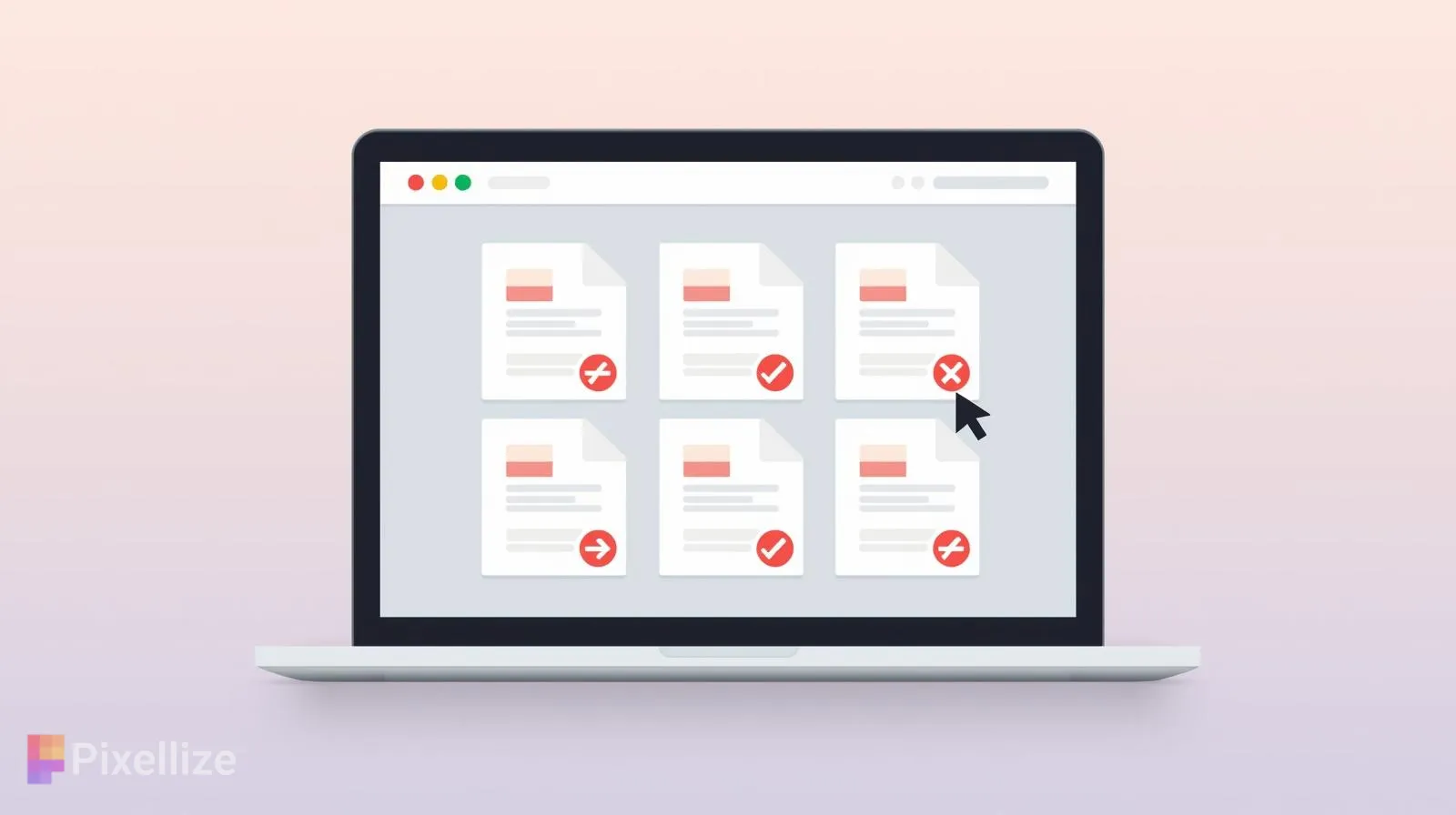
Delete Pages From PDF Online
Remove unwanted pages from your PDF quickly and easily. Upload your document, see every page on your screen, delete what you don’t need, and download a clean, organized PDF. It’s fast, secure, and works right in your browser.
What Does “Delete Pages From PDF” Mean?
Deleting pages from a PDF means removing pages you don’t need while keeping everything else exactly as it is. Instead of creating a whole new document, you simply pick the pages to remove and save a cleaner version. It’s like cutting out pages from a book without affecting the rest of the story.
Why Use Pixellize PDF Page Deleter?
Pixellize makes removing PDF pages simple and safe. You don’t need any special skills or technical knowledge.
What Makes It Great:
- See before you delete: View every page as a picture before removing it
- Undo mistakes: Restore any page with just one click
- Works in your browser: Your files stay on your device and never get uploaded to our servers
- Perfect quality: Your PDF looks exactly the same, just with fewer pages
- No account needed: Start using it right away
- Lightning fast: Works quickly even with large documents
When Should You Delete Pages From a PDF?
- Getting rid of blank or empty pages
- Removing private or confidential information
- Cleaning up scanned documents that have extra pages
- Sharing only the important parts of a document
- Preparing documents for printing or submitting
When your PDF has pages you don’t need, removing them makes your document smaller, neater, and easier to share with others.
Delete PDF Pages Instantly
Upload your PDF, remove the pages you don’t want by looking at them on screen, and download your updated file in seconds. Everything happens in your browser, so your documents stay private and secure.
Explore Other Similar Tools
Simply select one from the list below.
Frequently Asked Questions
How do I delete pages from a PDF?
Upload your PDF file, and you'll see all pages displayed as thumbnails. Simply click on the pages you want to remove, then download your updated PDF. It takes just a few seconds.
Will deleting pages affect PDF quality?
No, not at all. The remaining pages keep their original quality, formatting, and layout. Only the selected pages are removed, everything else stays exactly the same.
Can I restore pages after deleting them?
Yes, you can restore any deleted page before downloading. Just click on the page again to bring it back. Once you download the final PDF, those changes become permanent.
How many pages can I delete at once?
You can delete as many pages as you need. There's no limit on the number of pages you can remove from a single PDF document.
Can I delete pages from password-protected PDFs?
You'll need to remove the password protection first before you can edit the PDF. Once the password is removed, you can delete pages normally.