
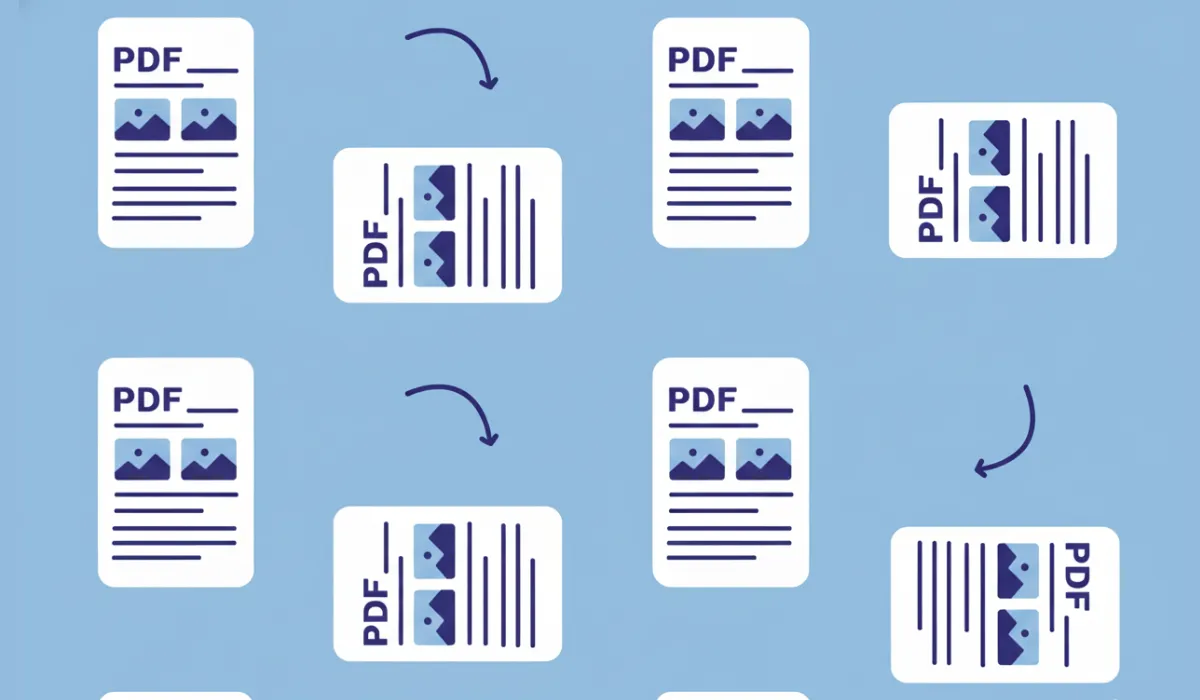
PDF files are great for sharing documents, but sometimes pages don’t appear the way they should. You might open a PDF only to find some pages sideways, upside down, or incorrectly aligned. This usually happens with scanned documents, mobile scans, or merged PDFs.
The good news? You don’t need any special software to fix this. In this guide, you’ll learn how to rotate PDF pages online, quickly and safely, using a free browser-based tool.
Why Do PDF Pages Need Rotation?
PDF rotation issues are more common than you think. Here are a few typical situations where rotating PDF pages becomes necessary:
- Scanned documents saved in the wrong orientation
- Mobile camera scans that appear sideways
- PDFs combined from multiple sources with mixed layouts
- Files that look fine on desktop but wrong on mobile
- Documents that don’t print correctly
Instead of re-scanning or editing the file again, rotating the PDF pages is the fastest solution.
How to Rotate PDF Pages Online (Quick Steps)
Rotating a PDF online takes just a few clicks. Here’s how it works:
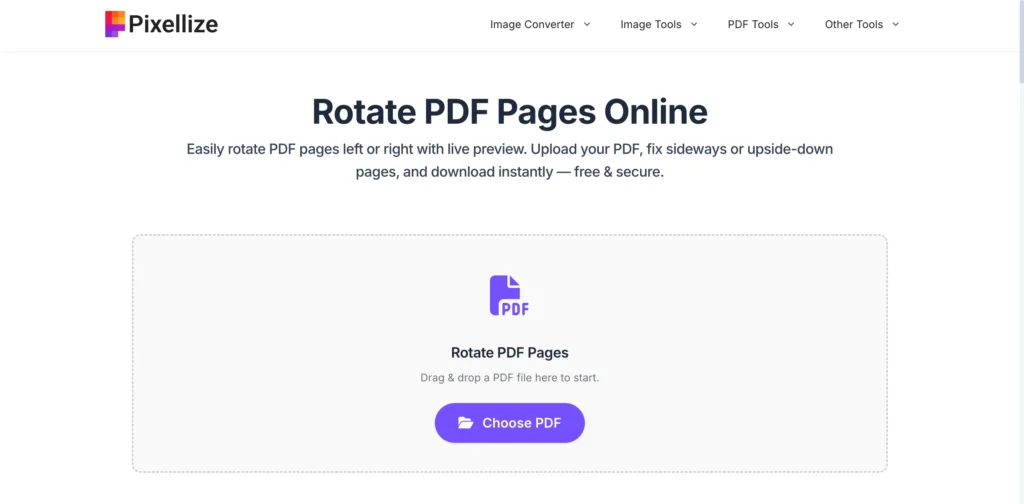
Step 1: Upload Your PDF
Upload your PDF file using the rotate PDF tool. You can drag and drop the file or select it from your device.
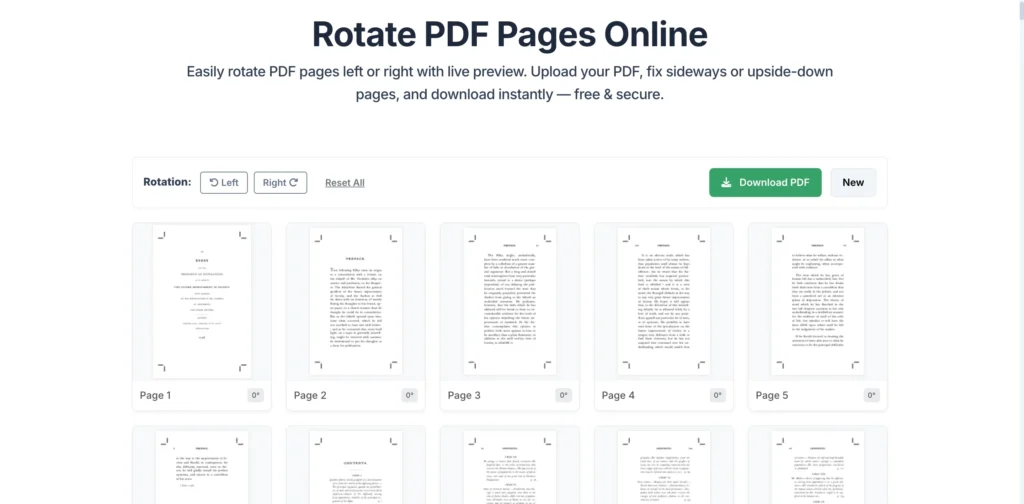
Step 2: Preview All Pages
Once uploaded, every page is displayed as a preview. This makes it easy to spot pages that are sideways or upside down.
Step 3: Rotate Pages
Rotate pages left or right by 90 degrees. You can:
1. Rotate individual pages, or
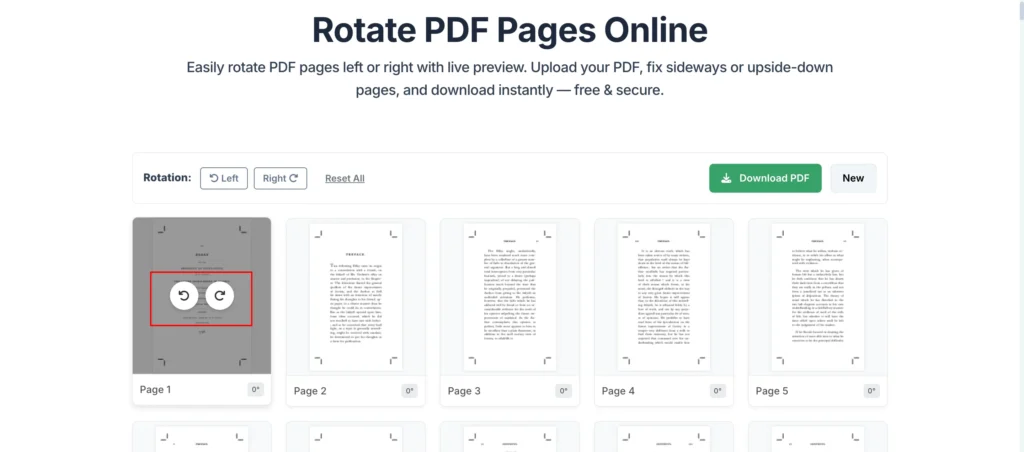
2. Rotate all pages at once
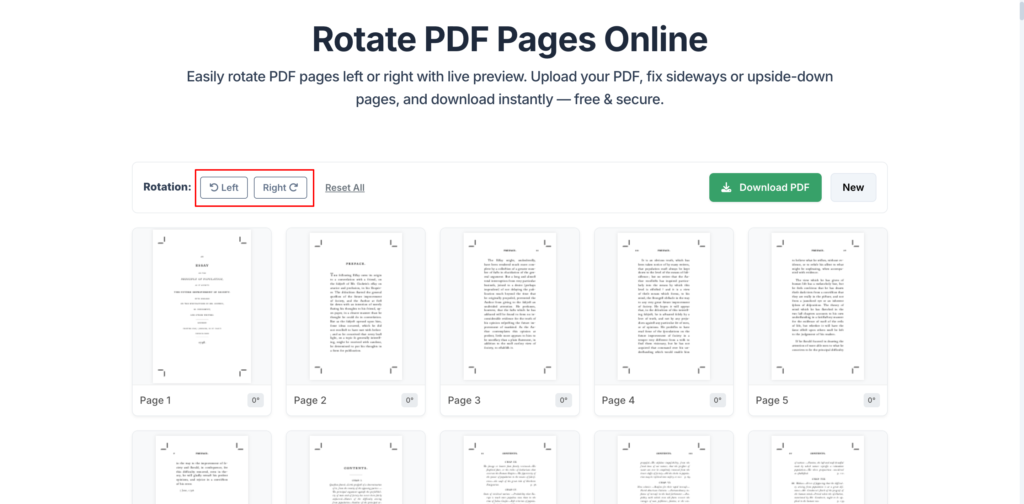
Changes are shown instantly in the preview.
Step 4: Download the Rotated PDF
After fixing the orientation, download the updated PDF. The file keeps its original quality and layout.
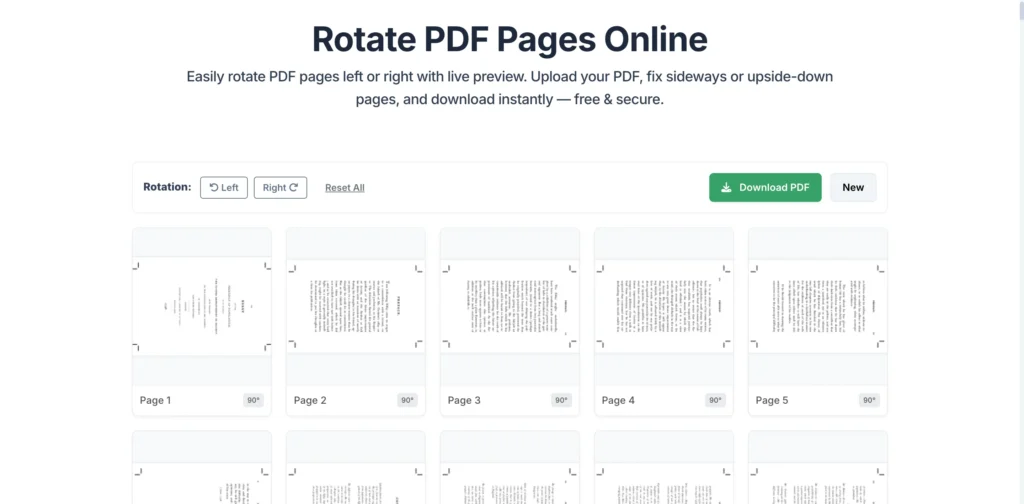
That’s it—no software, no account, no waiting.
Can You Rotate Only Certain Pages?
Yes. One of the biggest advantages of online PDF rotation tools is page-level control.
You don’t have to rotate the entire document if only a few pages are wrong. Simply rotate the affected pages and leave the rest unchanged.
This is especially helpful for:
- Contracts with scanned annexures
- Study notes with mixed orientations
- Reports merged from different sources
Is It Safe to Rotate PDFs Online?
Yes—if the tool works directly in your browser.
Modern rotate PDF tools process files locally, meaning:
- Your PDF is not uploaded to a server
- No data is stored or shared
- Your document stays private
This makes online PDF rotation safe even for sensitive or confidential files.
Does Rotating a PDF Reduce Quality?
No. Rotating a PDF does not affect:
- Text sharpness
- Image resolution
- Layout or formatting
Rotation only changes the page orientation metadata. Your content remains exactly the same, just properly aligned.
When Should You Rotate a PDF Instead of Recreating It?
Rotating a PDF is the best choice when:
- The content is correct, but orientation is wrong
- Re-scanning or re-exporting would take extra time
- You need a quick fix before sharing or printing
- The PDF comes from a third-party source
It saves time and avoids unnecessary rework.
Common Use Cases for PDF Rotation
People rotate PDFs online for many reasons, including:
- Fixing scanned invoices and receipts
- Correcting sideways bank statements
- Aligning exam papers and assignments
- Preparing documents for printing
- Improving readability on mobile devices
No matter the reason, rotating pages makes your document more professional and easier to read.
Final Thoughts
Learning how to rotate PDF pages online can save you time, effort, and frustration. Instead of dealing with misaligned documents or downloading heavy software, a simple online tool lets you fix PDF orientation in seconds.
If your PDF pages look sideways or upside down, just upload the file, rotate the pages you need, and download a clean, properly aligned PDF—quick, free, and secure.
Frequently Asked Questions
How can I rotate PDF pages online without installing software?
You can rotate PDF pages online using a browser-based PDF rotation tool. Simply upload your PDF, preview each page, rotate pages left or right as needed, and download the updated file—no software installation required.
Can I rotate only one page in a PDF?
Yes. Most online PDF rotation tools allow you to rotate individual pages. This is useful when only a few pages are sideways or upside down while the rest of the document is correctly aligned.
Will rotating a PDF change its quality or content?
No. Rotating a PDF does not affect text quality, image resolution, or layout. It only changes the page orientation, so your document looks correct without any quality loss.
Can I rotate all PDF pages at once?
Yes. Online PDF tools usually provide an option to rotate all pages together. This is helpful for scanned documents where every page needs the same rotation.

Pixellize
We're Pixellize Team, a group of digital creators and developers who are passionate about developing free online tools that can be easily utilized by everyone. We also share tips on working smarter and faster!
Related Post
Online PDF Reader – View and Read PDFs Instantly
In today’s fast-moving digital world, PDFs are everywhere — from office documents and study materials to invoices, resumes, and eBooks....
Pixellize
February 22, 2026
5 Min Read
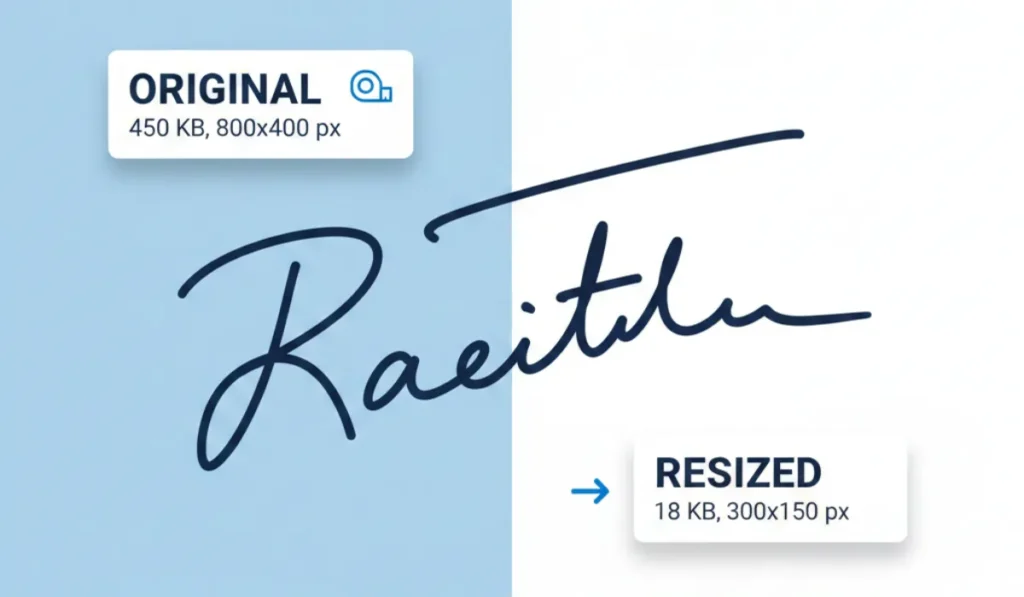
How to Resize Signature Images to 20KB & 50KB
If you have ever tried to fill out a government job application, a visa form, or a college registration, you’ve...
Pixellize
December 31, 2025
4 Min Read
Image to Text Converter: A Simple Way to Extract Text from Images
In today’s digital world, text is not always available in an editable format. Many times, important information is shared as...
Pixellize
December 15, 2025
3 Min Read